Students with individual accounts will find their assigned and recent work on the My Work page — a student dashboard that includes their assignments, activity timeline, and saved projects created with Make-a-Movie or Creative Coding.
The timeline includes the history of all the activities they’ve started in BrainPOP—from movies they’ve watched to quizzes they’ve completed. Students will receive a notification whenever they have a new, upcoming, or overdue assignment, and whenever a teacher provides feedback or a score on their work.
Note: Students must belong to at least one teacher’s class in order to log in to an individual student account.
IN THIS ARTICLE
Navigating the My Work Page
Product Picker
Settings/Log Out
Navigating the My Work Page
By default, students will land on the My Work page when they log in to BrainPOP.
To find the My Work page from other parts of BrainPOP, students should:
- Choose My Work from the menu bar at the top of the site.
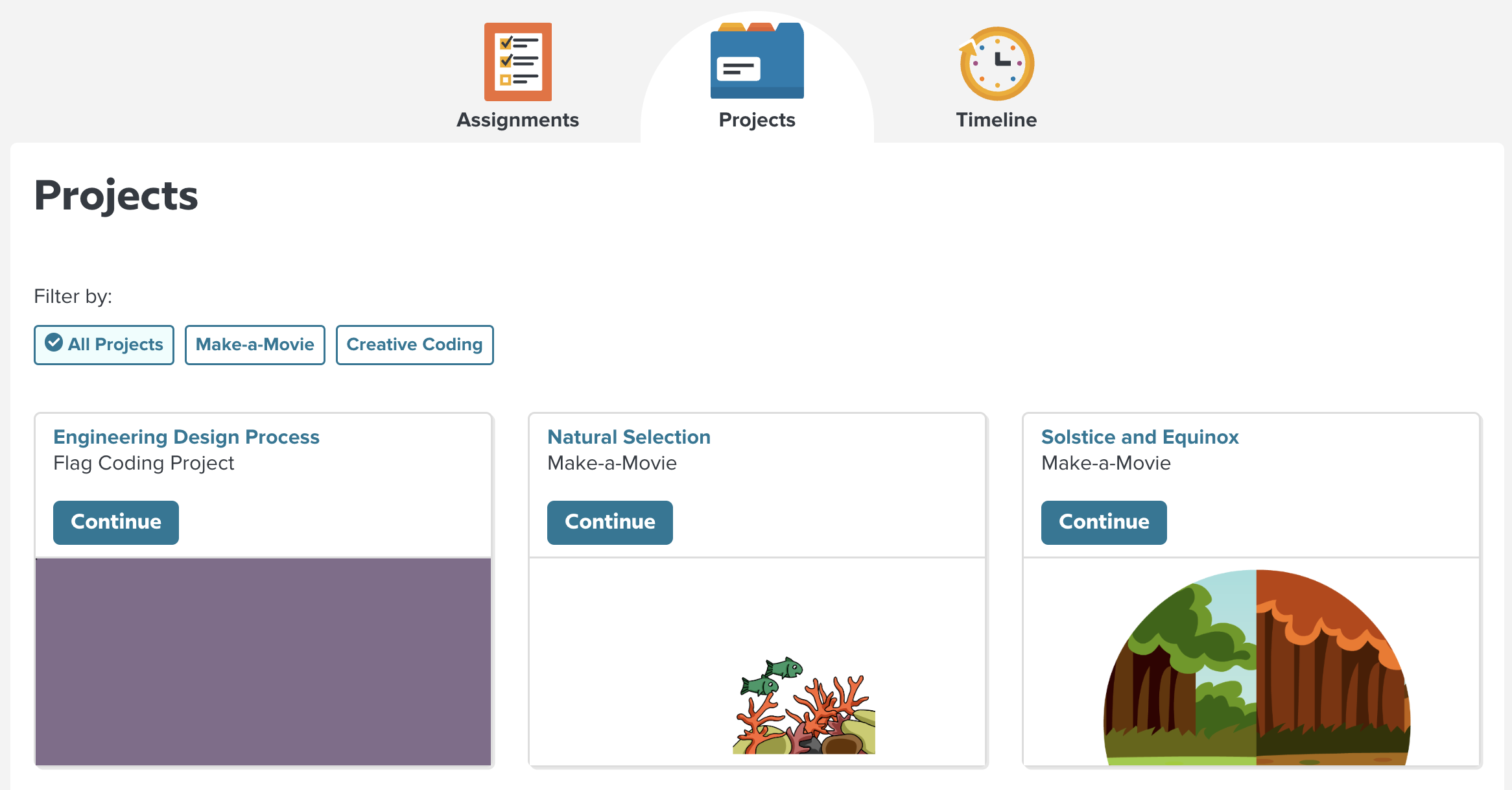
- Students will find themselves on the Assignments tab. From there, they can switch to Projects to view saved creative projects, or Timeline to view their activity history.
Assignments
The Assignments tab includes sections for To Do, Late, and Done assignments.
In the sidebar, students will find their classes listed and can choose a class to see only that class's assignments.
Projects
The Projects tab will show all saved creative projects using Make-a-Movie and Creative Coding. From here, students can view and edit their projects.
Timeline
The Timeline tab shows a complete history of all activities a student started and completed in BrainPOP while logged in to their account, assigned or independently discovered.
Navigating to the Home Page from My Work
Students can navigate to the student homepage by choosing Select a Product (next to the Moby icon) on the left side of the site menu. to reveal a drop down menu that includes each product included in their school or homeschool subscription. Students can switch between products like BrainPOP and BrainPOP Jr. by choosing them from the drop-down menu.
When they select a product, students will be taken to that product's homepage, where they can browse by subject and find today's featured topic.
Settings/Log out
Students can select their username from the right side of the menu bar to choose Settings or Log out.
On the Settings page, students can view their account information and reset their password. (Note that students who use single sign-on (SSO) to log in to BrainPOP have no set password and cannot reset their password.)